Remove Blank Pages from PDF
Remove blank pages from PDF automatically, and check them before saving.
Remove blank pages from PDF files automatically. Every page is looked at and the empty ones are picked for you, including the blank sheets a scanner leaves behind. Nothing is removed until you have seen what is going and said yes.
- Free, no sign-up
- Files never leave your device
- Up to 100 MB per file
Drop a PDF file here
or
Up to 100 MB per file. Your files stay on your device.
Your file stays on your device. Nothing is uploaded.
What next
- Compare the page count with the paper original, to be sure only empty sheets were taken out.
- Scans often come out with pages sideways or in reverse as well: Rotate PDF and Reverse page order finish the tidy-up.
Step-by-step guide: How to Scan to PDF on iPhone, and Fix the Result
How to remove blank pages from a PDF
- 1
Click “Choose a PDF file” or drag your PDF into the box.
- 2
Wait a moment while every page is looked at.
- 3
Check what has been picked. Click any page to add it or leave it in.
- 4
Press the button, then download your file.
How an empty page is measured
Each page is drawn small, 120 pixels wide, and the share of it that isn’t bare paper is counted. A pixel counts as paper if it is light enough, and 4% of each edge is left out, because scanners leave a dark rim and a shadow. Drawing small is deliberate: a speck of dust fades to a faint grey that doesn’t count, while a line of writing still shows.
The number under each page is that share. “Completely” picks pages at 0.02% or less, “Nearly” at 0.2% or less, and “Mostly” at 0.8% or less. In our sample files a page of text measured 7% to 30%, so the gap between empty and written on is usually wide. The pages you remove are taken out of the file itself; the rest keep their order, bookmarks and fields.
Example: a report with a stray page and a “left blank” page
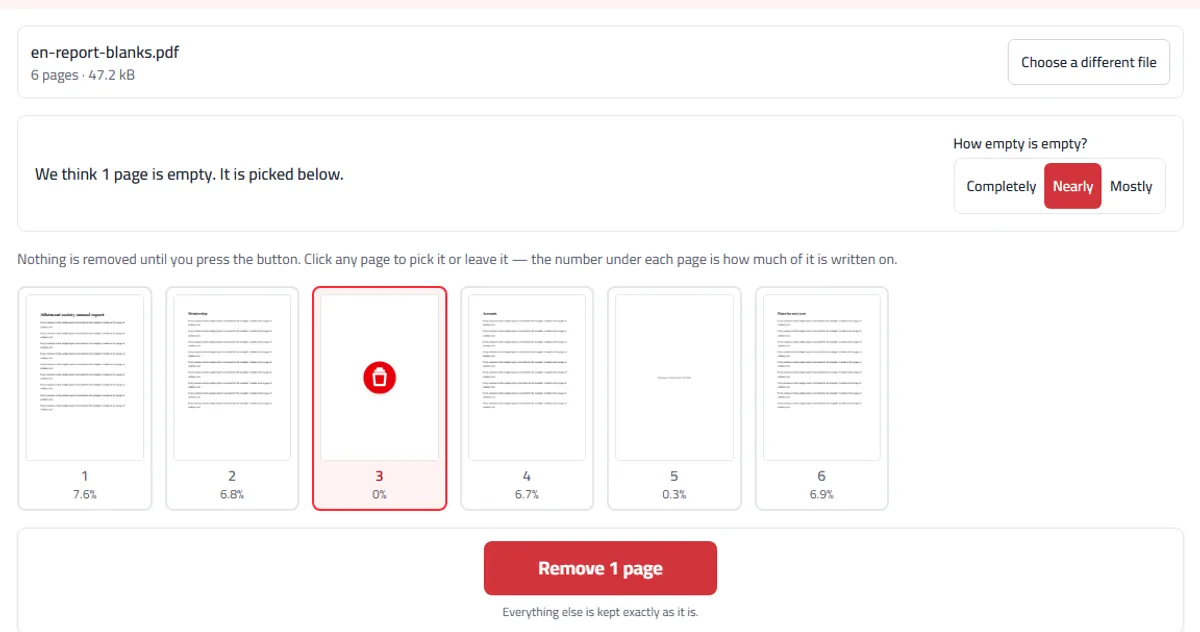
For this example we made a six-page sample annual report of the kind a word processor exports: four pages of text, one completely empty page left by a stray page break, and one page that says only “This page is intentionally left blank.”
With “Nearly”, the tool picked page 3 alone, at 0%. Page 5 showed 0.3%: the single line is more than “Nearly” allows, so it stayed. Switching to “Mostly” picked both; “Completely” picked only page 3 again.
Removing page 3 gave a five-page file. Whether page 5 goes is a choice about the document, not the file: in a printed report it keeps the next section on a right-hand page, so leave it in for printing and take it out for a screen copy.
This tool or another one?
If you already know which pages to take out, blank or not, Delete pages is quicker. To add a blank page rather than remove one, use Insert blank page. And after cleaning up a double-sided scan, Rotate PDF fixes pages that came out upside down.
When you would use it
Cleaning up a double-sided scan, where every empty back became a page of its own.
Tidying an archive or fax bundle full of separator sheets.
Making a long scan smaller before uploading it to a system with a size limit.
Checking a document before printing, so twenty empty sheets do not come out of the printer.
What to expect
Pages are judged by how they look, not by what they contain, which is the only thing that works for scans. Every page it finds is shown to you first.
A page holding only a fold shadow or a page number is usually picked under “Nearly” but not under “Completely”; a clear logo keeps it. Either way, the choice stays yours.
Nothing is removed until you say so, and the file on your device is never changed.
It cannot tell a deliberate blank page, such as a separator between chapters, from an accidental one. Keep those if they matter.
To choose pages by hand instead, Delete pages shows every page for picking.
Updated 2 November 2026: removed pages are now deleted from the file itself. If you used this tool earlier, see Are deleted PDF pages really gone?
Frequently asked questions
Is this really free?
Yes. No sign-up, no daily limit, and no watermark on your file.
Is my file uploaded?
No. The pages are looked at and removed inside your browser, on your device. Your PDF is never sent to us or anyone else.
How does it decide a page is empty?
It draws each page and measures how much of it is not bare paper. Looking at the picture rather than at what the file says is the only way that works for scans, where a blank sheet is really a photograph of paper covered in faint specks.
Can it remove white pages from a scanned PDF?
Yes, and that is mostly what it is for. Scanner speckle and the dark rim down the edges are ignored, so a scanned blank sheet is spotted even though it is not truly white.
What do “Completely”, “Nearly” and “Mostly” mean?
“Completely” picks only pages with nothing on them at all. “Nearly” also picks pages with no more than a speck or a stray page number, and is the one to start with. “Mostly” goes further and will pick a page with a line or two on it, so check it carefully.
Can it remove a page I wanted to keep?
Not without you letting it. Nothing happens until you press the button, and you can click any page to change your mind. The number under each page shows how much is written on it, so a page picked by mistake is easy to spot.
What happens to the pages I keep?
Nothing you can see. They stay in the same order with their text, pictures and fonts as they were, and bookmarks, links and form fields on them keep working. A bookmark or link that pointed at a removed blank page goes with it, and screen-reader tags in an accessible PDF are taken out.
Can it remove every page?
No. A PDF has to have at least one page, so you will be asked to leave one in.
Why was the “intentionally left blank” page kept?
Its one line makes it about 0.3%, more than “Nearly” allows. Choose “Mostly” to have it picked too, or click it yourself.
Does removing blank pages make the file smaller?
For a scan, yes, because each blank page is a picture with its own size. In a typed document an empty page takes almost nothing, so the size barely changes.
Why can’t I open my password-protected PDF?
Protected files are encrypted, so their pages can’t be drawn or changed. Remove the password first, then open the file again.
Related tools
More Organize PDF toolsGuides
- How to Scan to PDF on iPhone, and Fix the ResultScan paper documents to a PDF with the iPhone's own Notes or Files app, then fix what usually goes wrong: pages out of order, sideways pages and big files.
- How to Fix a Messy Scanned PDF: Pages Out of Order, Sideways or BlankYour scan came out backwards, with sideways pages and empty backs? Fix it in three steps, in your browser, without scanning everything again.