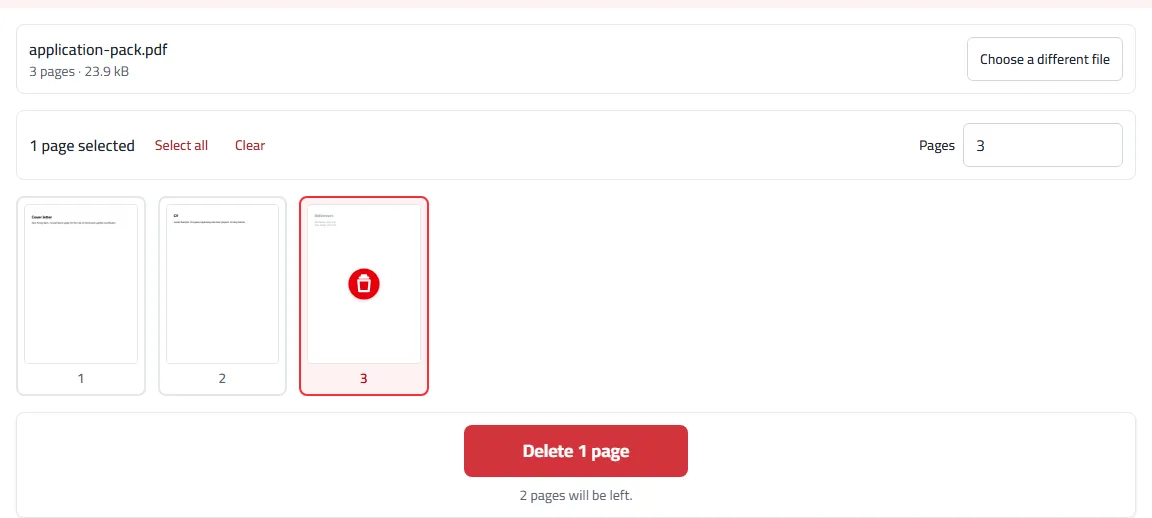
You’re applying for a job, and your application pack is one PDF: a cover letter, your CV, and a last page with your referees’ names and phone numbers. This employer only wants the letter and the CV, so you delete the last page, check that two pages are left, and send it.
What your PDF reader shows you isn’t necessarily everything in the file. A PDF doesn’t hold pages the way a folder holds sheets of paper. It holds separate pieces: the text of each page, its pictures and fonts, links, bookmarks and the file’s details, plus a short list telling the reader which pages to show and in what order. Take a page off that list and nothing else, and it disappears from the screen while its text can stay in the file for anyone who goes looking.
What we found when we tested our own tools
This week we re-tested every tool on this site that takes something out of a file. We made a test document that opens with a contents page linking to each chapter, and put a phrase on page 3 that appears nowhere else. Then we deleted page 3 and searched the whole saved file for the phrase, including the parts stored compressed.
It was there. No PDF reader showed the page, but its text was in the file in full. The tool built the new file by copying the pages you keep, and because the contents page linked to page 3, a hidden copy of page 3 came along with the link.
We fixed it in the tools that delete, extract and split pages. They now remove pages from the file itself, then remove every piece that nothing points to any more. The test stays in our checks for good: no version of those tools can be released if the phrase turns up again.
Where “deleted” content can survive
Deleted and extracted pages
A hidden copy is most likely when links or bookmarks point at the page you remove, which is common in long reports and contracts with a table of contents. And when you pull a few pages out into a new file, the new file can carry things that belong to the whole document, such as a spreadsheet attached to the original report.
In Delete pages and Extract pages, the pages go along with everything only they used, while bookmarks and links that lead to the pages you keep still work. Extracting and splitting also leave the original’s attached files behind.
Form answers after flattening
Flattening a form draws the answers into the page so nobody can change them. Two things can stay in the file without being seen. One is a hidden field, which holds a value the person filling the form never sees, such as an internal reference number. The other is the text of a sticky note whose icon was drawn into the page. Some older government forms also keep a second copy of every answer in a format called XFA.
In our own Flatten PDF we found something worse: hidden fields were drawn onto the page, so an answer nobody could see before became visible. Now a hidden field stays hidden and its answer leaves the file, along with note text and the XFA copy.
File details and their old copies
Every PDF stores a title, an author and the name of the program that made it, and the author is often your full name or your work computer’s name. Fewer people know that some programs save changes by adding them to the end of the file, so an older copy of the details stays inside it, such as the title before you renamed it. A picture inside the file can carry details of its own as well, like the photographer’s name or the camera model.
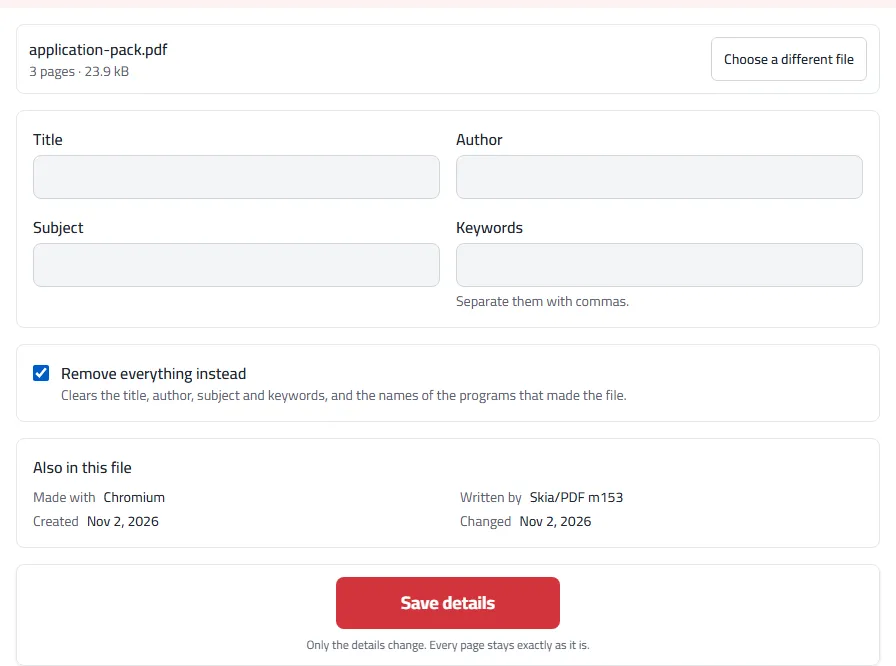
In Edit PDF metadata, “Remove everything instead” now clears those older copies too, along with the details attached to pages and pictures. Our guide on how to change the author of a PDF walks through the tool.
Cropping only hides what’s outside the frame
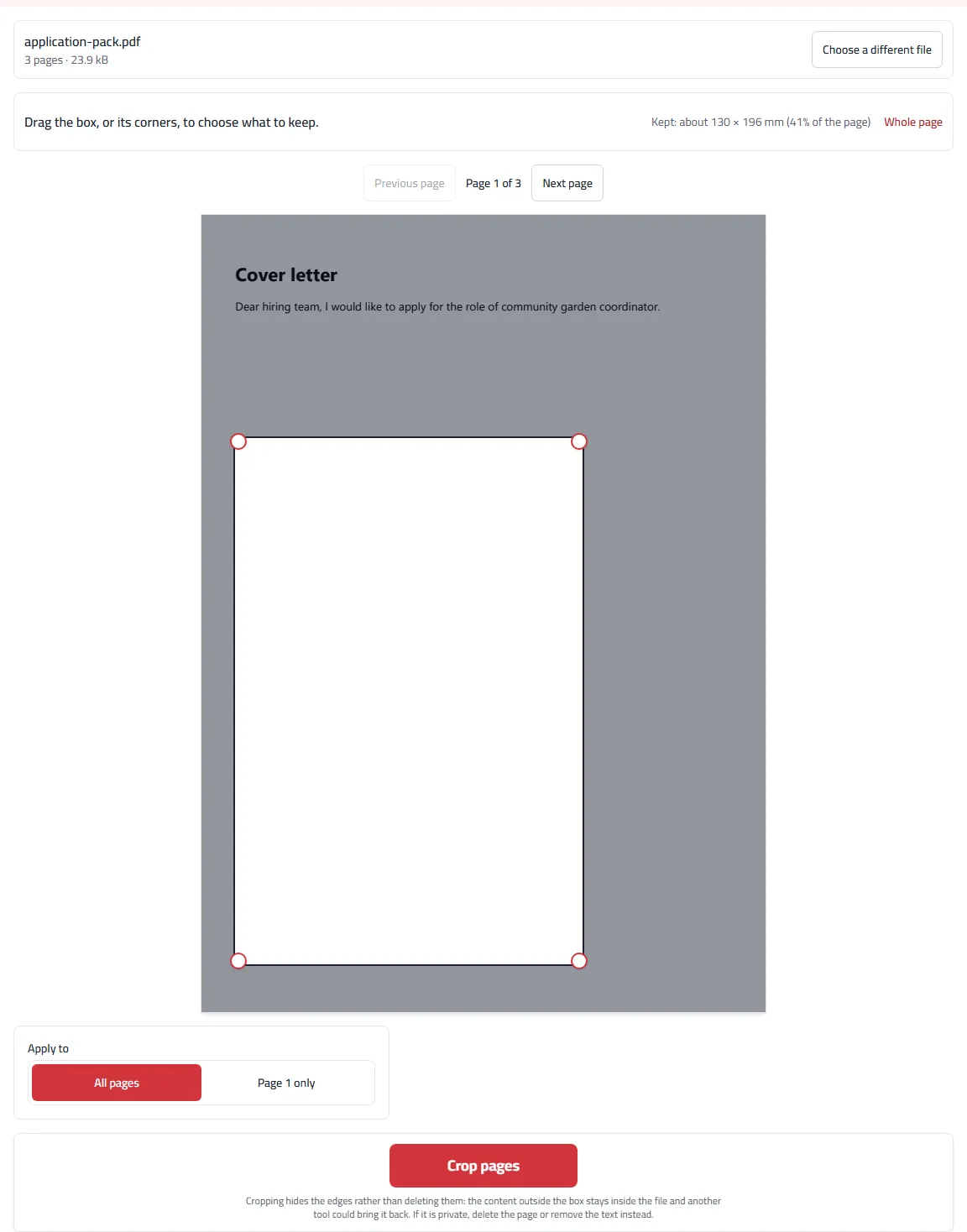
Cropping gives a page a new frame, and the reader shows only what’s inside it. The text and pictures outside the frame stay in the file. Any PDF editor can reset the frame, and text outside it can still be copied. Use cropping to trim margins.
To make part of a page really disappear, use Redact PDF. It removes the text, pictures and drawings under each black box, then checks the finished file before handing it to you.
Checking your own file
Most of what can hide inside a PDF can’t be seen with an ordinary PDF reader. A hidden page doesn’t show in any viewer, and old copies of the file’s details don’t show in its properties window. What you can do yourself are a few checks. Each one shows something and misses other things:
- Open the document properties. In Adobe Acrobat Reader, go to File, then Properties. In Chrome, open the three-dot menu, then Document properties. You’ll see the title, the author and the program that made the file. This shows the current details only, not older copies.
- Open the bookmarks panel. If a bookmark still opens a section you deleted, the file still carries part of it. If there are no bookmarks, that proves nothing either way.
- Look for attached files. In Acrobat Reader, the paper-clip icon in the side panel lists them. Most phone PDF readers don’t show attachments at all.
- Compare the file size with the original. If you kept 2 pages out of 20 and the file is nearly as big as before, that’s worth a second look. It’s only a hint: two pages can hold large photos, and fonts are shared by every page.
Two common tricks don’t help here. Searching inside your PDF reader only searches what it displays, so it can’t find a hidden page. Opening the file in a text editor like Notepad and searching rarely works either, because most PDFs store their content compressed.
To see what a file carries without reading its inner parts yourself, use Check PDF for hidden data. It lists older versions saved inside the file, attached files, hidden pages, form answers, notes and the file’s details, and removes the ones you choose. It reports what it found, never that the file is safe, and it can’t read text inside pictures or scans.
Even so, what protects you most is how you remove things in the first place:
- Use a tool that says plainly it removes content from the file, not one that only hides it.
- Don’t hide information by cropping or with a black rectangle; redact it.
- Clear the file’s details before you send anything sensitive.
- Send as little as you can. A page you never send can’t be hiding in the file.
- Keep the original yourself, and send a copy.
Frequently asked questions
Does every page-deleting tool leave hidden pages behind?
No. Many do it properly for most files. The problem shows up in particular cases, such as links between pages, and you can’t tell from how the file looks.
Can anyone read a hidden page?
Not someone who opens the file to read it. But someone looking for it can find it with free tools that read a PDF’s inner parts, without much expertise.
I used your tools before 2 November 2026. Is my file affected?
Until the morning of 2 November 2026, Delete pages, Extract pages, Split PDF and Remove blank pages could keep a hidden copy of removed pages when the file had a contents page or links between its pages. Flatten PDF, and the “Make the answers permanent” and “Make the marks permanent” options in Fill a form and Annotate PDF, could show hidden form answers on the page or leave note text in the file. “Remove everything instead” in Edit PDF metadata could leave older copies of the title and other details. Only files processed with these tools before then are affected; Merge PDF is not. Separately, until 4 November 2026, JPG to PDF and Add an image put photos into the PDF with their camera details, such as the phone model and GPS position, and Compress image kept them in a JPEG that was already under the limit. If what you removed was sensitive and you kept the original, redo it with the current tools.
Is my file uploaded while pages are removed?
No. All our tools run in your browser, on your device, and the file isn’t sent anywhere.