Annotate PDF Online Free
Annotate PDF online free: highlight, draw and add notes.
Annotate PDF online free, without installing anything. Highlight what matters, draw on it, point at it with an arrow, or leave a note for whoever reads it next. The marks are saved as real PDF notes, so anyone opening the file can click them, reply to them or take them off.
- Free, no sign-up
- Files never leave your device
- Up to 100 MB per file
Drop a PDF file here
or
Up to 100 MB per file. Your files stay on your device.
Your file stays on your device. Nothing is uploaded.
What next
- Sending the file back for changes? Say in your message how many notes you left, so none is missed.
- When the revised version comes back, Compare two PDFs shows what changed since the file you marked up.
Step-by-step guide: How to Compare PDF Versions of a Contract or CV
How to annotate a PDF online
- 1
Click “Choose a PDF file” or drag your PDF into the box.
- 2
Pick a marking tool and a colour.
- 3
Drag on the page to make your mark, and move between pages as you go.
- 4
Press “Save marked PDF”, then download your file.
The six marking tools, and how marks are saved
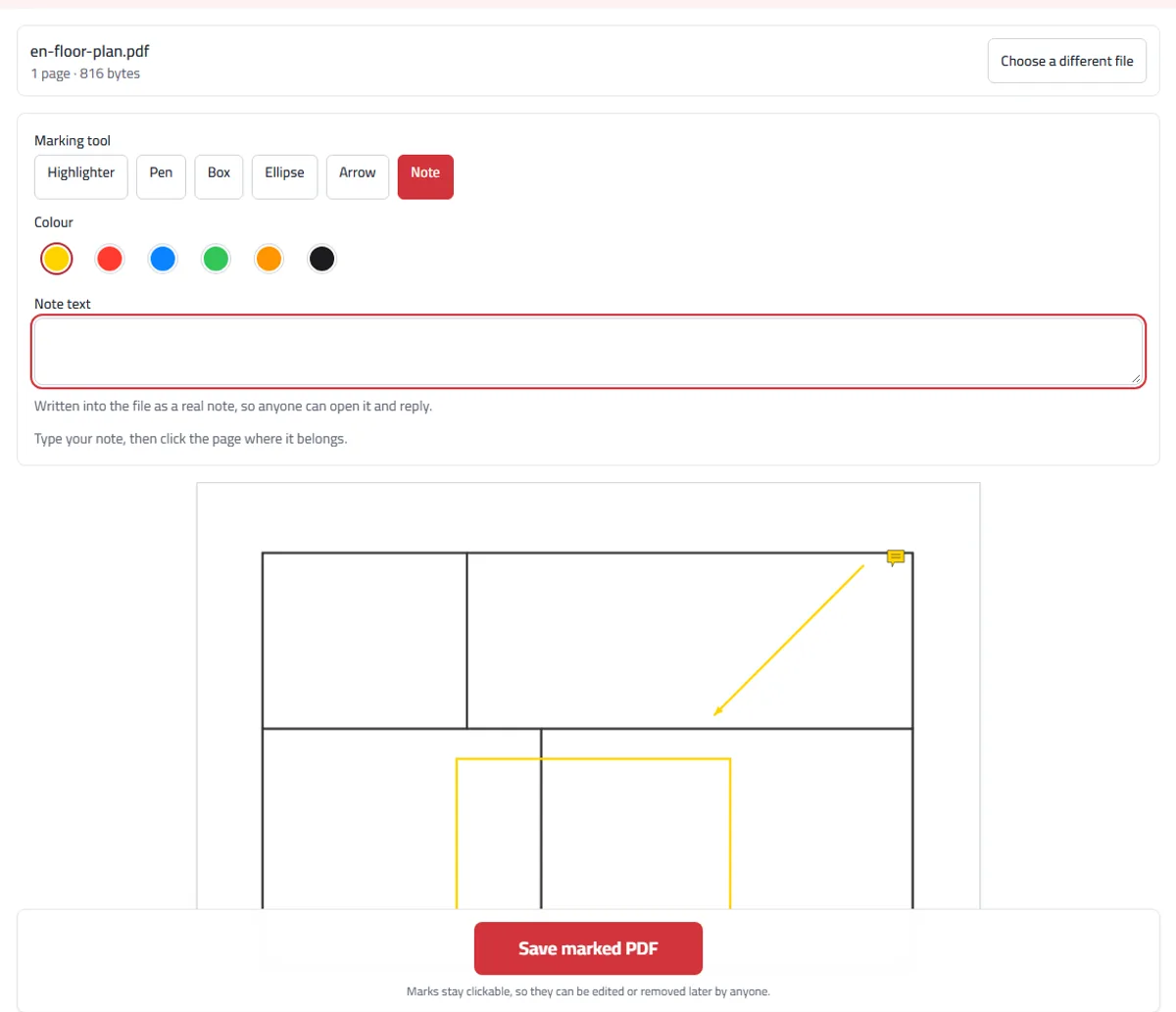
The highlighter, pen, box, ellipse and arrow are drawn by dragging on the page. For a note, type the text first, then click where it belongs: a small icon appears that readers open, and the text box empties for your next note. There are six colours and three thicknesses.
Every mark is saved as a real PDF annotation of its own kind: a highlight is a highlight, a box is a square annotation, an arrow is a line with a head, and a note is a text note. Each carries its own drawing, so readers show it as you saw it, and the highlighter is blended into the page, so the words under it keep their own colour. A file can take up to 500 marks.
Example: sending a floor plan back with changes
For this example we used a one-page sample floor plan, four rooms in outline, the kind a builder sends for comments. We wanted to point out one door and one room without printing the plan or describing it in an email.
We drew a box over the living room, an arrow from the corner to the wall in question, and a note there: “Move this door 30 cm towards the window”. The saved file has a square, a line and a text note on its page, and it grew from 816 bytes to 1.7 KB.
Whoever drew the plan can open the note, reply to it in their own reader, and delete the marks once the change is made. If the marks must not move, save with the option to make them permanent, but then the note’s words don’t stay, only its icon; for words that must stay, use Add text to PDF.
Annotate, write or redact?
Annotations sit on top of the page and can be taken off. A black box drawn here hides nothing: whoever opens the file can move or delete it, and the words underneath are still there. Redact PDF is the tool that removes what is under the box. When the revised version comes back, Compare two PDFs shows what changed.
When you would use it
Reviewing a colleague’s draft: highlight what matters, question a sentence, suggest the change in a note.
Marking up a plan or a drawing with arrows and boxes before sending it back to whoever drew it.
Studying from a textbook chapter: highlights for the important parts, notes for what to revise.
Pointing out what needs fixing on a scanned document, where the text itself cannot be edited.
What to expect
Marks are saved as real PDF annotations, so whoever opens the file can click a note, read it, move it or take it off — they are not painted into the page.
The highlighter draws over the page so the words stay readable underneath. On a scan it highlights an area rather than words, because there are no words to select.
To make sure nobody moves or removes your marks, press them into the page with Flatten PDF.
Arabic text in a note is stored so that readers show it correctly, joined and in the right direction.
This is marking up, not a review system: there are no reply threads, no versions and no record of who wrote what across a team.
Updated 2 November 2026: with "Make the marks permanent", the text of notes drawn into the page now leaves the file. If you used this option earlier, see Are deleted PDF pages really gone?
Frequently asked questions
Can I highlight a PDF online for free?
Yes. No sign-up, no daily limit, and no watermark on your file.
Is my file uploaded?
No. The marks are added inside your browser, on your device. Your PDF is never sent to us or anyone else.
Can the marks be removed afterwards?
Yes, unless you make them permanent. They are saved as ordinary PDF notes, so any reader can select one and delete it, or reply to it. That is the point of marking up rather than drawing on.
Will the marks show in every PDF reader?
Yes. Each mark carries a drawing of its own, so readers show the same thing rather than each drawing its own idea of a highlight. They print, too.
Does the highlighter hide the text?
No. It is mixed into the page the way a marker pen works on paper, so the words stay readable through the colour.
Do notes work in Arabic?
Yes. A note is stored as text rather than as a picture, so Arabic is kept exactly as you typed it and your reader shows it properly, joined and from the right.
Can I mark several pages?
Yes. Move between pages with the arrows under the page, and everything you have marked is listed underneath with the page it is on.
What does “make the marks permanent” do?
It draws the marks into the page itself, so nobody can move or remove them. Use it when you are sending the file out and the marks matter. It cannot be undone, so keep your own copy.
Can I highlight by selecting words, like in a reader?
Not yet. You draw the highlight over the words instead, which works on scanned pages too, where there is no text to select.
How do I add more than one note?
Type the note, then click where it belongs; the text box empties. Type the next note and click its spot, and so on. Every note appears in the list under the page.
Can I hide something with a black box here?
No. A box is an annotation on top of the page that anyone can move or delete, and the words under it stay in the file. To remove them, use Redact PDF.
Why can’t I open my password-protected PDF?
Protected files are encrypted, so nothing can be added to them. Remove the password first, then open the file again.