Add Page Numbers to PDF
Add page numbers to PDF in six positions, free, in your browser.
Add page numbers to PDF files. Choose the corner, how the number reads, where the count starts, and whether the cover gets one. Arabic is fully supported: “صفحة ٣ من ١٢” in Arabic-Indic digits, joined and in the right order.
- Free, no sign-up
- Files never leave your device
- Up to 100 MB per file
Drop a PDF file here
or
Up to 100 MB per file. Your files stay on your device.
Your file stays on your device. Nothing is uploaded.
What next
- If the document has a table of contents, check its page numbers match the new ones.
- Going to merge more files into this one? Add the numbers last, after the final merge.
How to number PDF pages
- 1
Click “Choose a PDF file” or drag your PDF into the box.
- 2
Choose where the numbers go and how they read.
- 3
Check the preview of the first numbered page.
- 4
Press “Add page numbers”, then download your file.
What the numbers are, and where they go
Each number is real text written on top of the page: Noto Sans for Western digits, or Noto Naskh Arabic when you pick Arabic-Indic digits or the Arabic words. Only the characters used are embedded, so a six-page sample grew by 0.3 KB. The pages aren’t copied into a new file, so bookmarks, links and form fields stay as they were.
There are six positions: top or bottom, each with left, middle or right, 28 points (about a centimetre) in from the edge of the page as you see it. Sizes run from 8 to 16 points, in grey or black. Left and right are the edges of the sheet, so a number set to the right sits in the right-hand corner whatever language the document is in.
The “of” figure comes from the first number. A bare cover drops out of the count, and when you start from a number other than 1, the figure after “of” or the slash is the last page number, not how many pages the file has.
Example: a chapter that starts on page 23
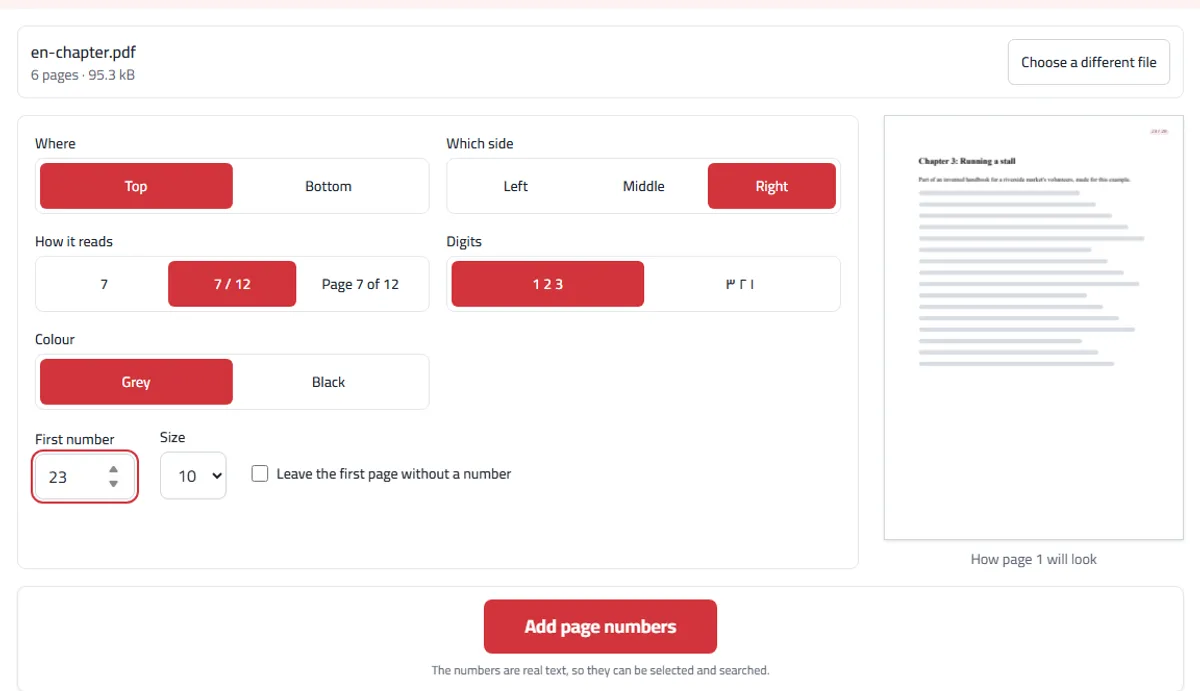
For this example we made a six-page chapter of an invented volunteers’ handbook for a riverside market. Chapter 2 ended on page 22, so chapter 3 had to carry on from 23, with the number in the top right corner where people flick through a printed copy.
We chose Top and Right, the “7 / 12” style and a first number of 23. The preview shows the first page reading “23 / 28”, and the last “28 / 28”. That is correct for the chapter on its own, but the “/ 28” suggests the whole handbook ends there, so for a chapter the plain “23” style is often the better choice.
When all the chapters are ready, the cleaner route is to put them together with Merge PDF and number the merged file once, instead of working out each chapter’s first number by hand.
Page numbers or a header?
Header and footer also writes page numbers, through {page} and {total}, inside any line you like. It always counts from the first page of the file and writes Western digits, so for a bare cover, a different first number or Arabic-Indic digits, number the pages here and put the rest of the line there, in another corner.
If a blank page needs to be counted for double-sided printing, add it with Insert blank page before numbering, not after. And old numbers that are wrong aren’t removed here: if they are text in an empty margin, Edit PDF can delete them first.
When you would use it
Numbering a thesis, a report or a set of minutes before printing, when the file itself has none.
Numbering a bundle put together from several documents, so a page cannot go missing from a stack unnoticed.
Numbering a contract so that a clause can be referred to by page in a meeting or an email.
Adding numbers to a scanned file before it goes into an archive.
What to expect
The count belongs to the tool, not to the page. A document that already shows numbers ends up with two sets, so check a page before running it over a long file.
Arabic-Indic digits (١ ٢ ٣) or Western ones, and a format such as "صفحة ٣ من ١٢", are chosen before you start.
A cover left bare drops out of the count. To have it counted without a number on it, also set the first number to 2.
On a rotated page the number follows the page’s own direction, so it prints the right way up rather than sideways.
For the same fixed line on every page, such as a title or a company name, that is Header and footer. For a large mark across the middle of the page, Add watermark.
Frequently asked questions
Is PDF page numbering here really free?
Yes. No sign-up, no daily limit, and no watermark on your file.
Is my file uploaded?
No. The numbers are added inside your browser, on your device. Your PDF is never sent to us or anyone else.
Can I leave the cover without a number?
Yes. Tick “Leave the first page without a number” and the count starts on the second page. “Of 12” then counts only the numbered pages, so a report with a cover reads 1 of 11 to 11 of 11.
Can the numbering start somewhere other than 1?
Yes. Set the first number to whatever you need, which is useful when this file is one chapter of something longer.
Can I use Arabic digits?
Yes. Choose ١ ٢ ٣ for Arabic-Indic digits, or 1 2 3 for the digits used across most of North Africa and in English. “Page 7 of 12” can be written in either language, in either kind of digit.
What about sideways pages?
The number follows each page’s own turn, so on a page that is turned for landscape it still sits at the bottom as you read it, not along the side.
Will the numbers be selectable?
Yes. They are written as real text with the font embedded, not drawn as a picture.
What if my pages already have numbers?
These are added on top; old ones are not removed. Put the new numbers in a different corner, or crop the old ones out first.
Why does it say 23 / 28 when my file has 6 pages?
Because the count started at 23, and the figure after the slash is the last page number, not the number of pages. For a chapter of something longer, the plain number style avoids that.
Can I number several PDFs in one go?
One file at a time. For chapters of one document, merge them first and number the result once, or number each file and set its first number to follow on from the one before.
Does numbering change the file size or quality?
Barely. The pages aren’t redrawn; a small line of text is added, so a six-page sample grew by 0.3 KB, and pictures and text stay exactly as they were.
Will a digitally signed PDF stay signed?
No. A digital signature covers the file exactly as it was signed, so any addition makes it invalid in the new copy, and the tool warns you before saving. Your original isn’t changed, so keep it if the signature matters.
Why can’t I open my password-protected PDF?
Protected files are encrypted, so nothing can be added to them. Remove the password first, then open the file again.