Edit PDF Metadata
Edit PDF metadata: title, author, subject and keywords, free.
Edit PDF metadata: change what your PDF says about itself. Set the title, author, subject and keywords, or remove them completely, then download the file. The pages are not touched.
- Free, no sign-up
- Files never leave your device
- Up to 100 MB per file
Drop a PDF file here
or
Up to 100 MB per file. Your files stay on your device.
Your file stays on your device. Nothing is uploaded.
What next
- Sharing the document outside your organisation? Check the pages too, for names in headers or comments, which these details do not cover.
- Open the file in another PDF reader and check that its document properties show what you typed.
Step-by-step guide: Are Deleted PDF Pages Really Gone? Checking What a PDF Still Hides
How to edit PDF metadata
- 1
Click “Choose a PDF file” or drag your PDF into the box.
- 2
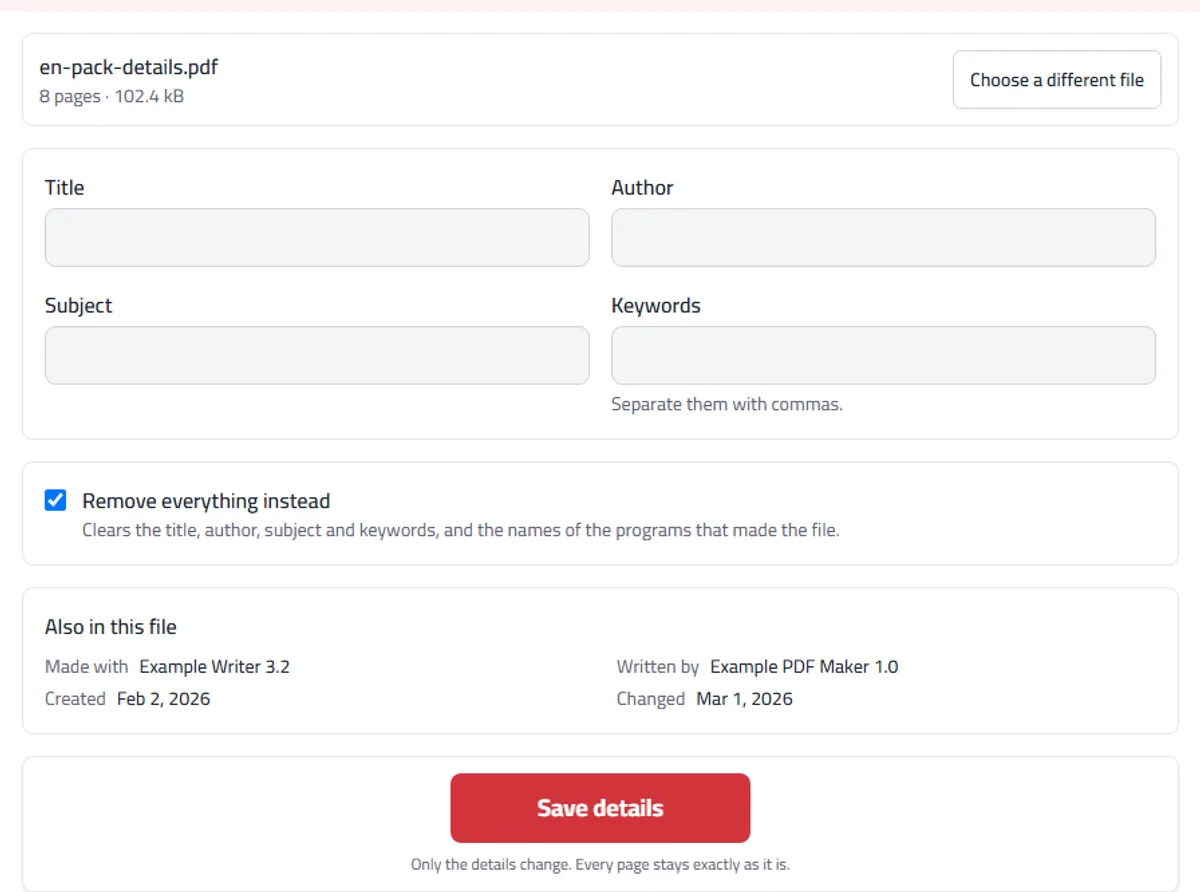
The details already in the file appear in the boxes. Change whatever you like.
- 3
Or tick “Remove everything instead” to clear them.
- 4
Press “Save details”, then download your file.
What changes when you save
The title, author, subject and keywords are written as you typed them, and an empty box clears that detail. The programs that made and wrote the file and its created and changed dates are shown under “Also in this file” and left as they are, unless you choose “Remove everything instead”. That clears the four boxes, both program names and any extra entries a program added, such as a company name or the original file’s path, and sets both dates to the moment you save, so the original date is gone.
Either way, the file’s second copy of these details, the XMP block, is removed, because some programs read it in preference and would bring the old title back. One thing to know about our other tools: most of them write “PDFSahl” as both program names when they save a file, so if you don’t want that, make this the last step, with “Remove everything instead”.
Example: clearing a meeting pack before it goes on a website
For this example we gave an eight-page sample meeting pack the kind of details a file picks up on its way: the author “J. Whitfield”, the keywords “draft, internal, v3”, an invented writing program and PDF maker, and dates in February and March.
We ticked “Remove everything instead” and saved. Every box came out empty, both program names were cleared, and the created and changed dates became the moment of saving. The eight pages were untouched.
Keywords are separated by commas, Arabic commas or semicolons, and saved with commas between them, so “garden club, rota” stays two keywords and “garden club” stays one.
What this tool can’t reach
These details describe the file, not its pages: a name printed in a page’s header stays, and Edit PDF or Redact PDF is the way to take it out. Older saved versions, attachments, form answers and notes can hold more again; Check PDF for hidden data lists them and removes the kinds you choose.
When you would use it
Fixing a file whose title still says "Document1" or the name of the template it came from — which is what a reader shows in its window, not the file name.
Putting the right author and subject on a document before it goes to a client.
Clearing details before publishing a file: the author’s name, the software used, leftover keywords.
Giving files real titles and keywords so they can be found again in a shared drive.
What to expect
These details describe the file. Nothing on the pages changes, and the page count stays the same.
Clearing them does not clear the pages. Words you can see stay visible; to take those out, use Edit PDF.
Many PDFs hold the same details twice, in a plain list and in an XMP block, and some programs read the second. Saving here removes that block, so an old title cannot creep back.
Arabic titles and author names are stored exactly as you typed them and come back the same.
Updated 2 November 2026: "Remove everything instead" now also clears older copies of the details, and the details attached to pages and pictures. If you used it earlier, see Are deleted PDF pages really gone?
Frequently asked questions
Is this really free?
Yes. No sign-up, no daily limit, and no watermark on your file.
Is my file uploaded?
No. The details are read and written inside your browser, on your device. Your PDF is never sent to us or anyone else.
Where do these details show up?
The title is what most readers put in the window bar and in search results on a shared drive, and it is often used instead of the file name. The author, subject and keywords help people find the file later.
Why did my old title keep coming back in other tools?
Many PDFs keep the same details twice: once in a simple list and once in an XMP block, and some programs prefer the second. We remove that block when you save, so every program shows what you typed.
Does it change the pages?
No. Nothing on any page is touched, and the page count stays the same. Only what the file says about itself changes.
How do I remove metadata from PDF files before sharing?
Tick “Remove everything instead” and the title, author, subject, keywords and the names of the programs that made the file are all cleared, along with older copies of these details that some programs leave inside the file, and XMP blocks attached to pages and pictures, which can name the author or the camera that took a photo. Note that names inside the pages themselves are not touched: use Edit PDF for those.
Does Arabic work?
Yes. Arabic titles and names are stored as you typed them and come back exactly the same.
Why does the file say it was written by PDFSahl?
Most of our tools write their name there when they save a file, as any program does. If you don’t want that, make this the last step and choose “Remove everything instead”.
Does the created date change?
Not unless you choose “Remove everything instead”, which sets both dates to the moment you save. Saving a new title or author keeps both dates as they were.
How do I separate keywords?
With commas, Arabic commas or semicolons. They are saved with commas between them, so a keyword of two words stays one keyword.
Why can’t I open my password-protected PDF?
Protected files are encrypted, so their details can’t be read or changed. Remove the password first, then open the file again.
Related tools
More PDF security & privacy toolsGuides
- Are Deleted PDF Pages Really Gone? Checking What a PDF Still HidesYou removed pages from a PDF and sent it. Where deleted content can survive inside the file, what you can check yourself, and what you can't.
- How to Change the Author of a PDF (and Its Title)Your name, an old colleague's or a draft title hiding in a PDF's details? See what a file says about itself, and change or clear it before you send it.