Duplicate Pages in PDF
Duplicate pages in PDF, as many copies as you need, free.
Duplicate pages in PDF files: make copies of the pages you choose. Put each copy next to the page it came from, or add them all at the end, then download the new file.
- Free, no sign-up
- Files never leave your device
- Up to 100 MB per file
Drop a PDF file here
or
Up to 100 MB per file. Your files stay on your device.
Your file stays on your device. Nothing is uploaded.
What next
- Print one sheet first to check the copies come out where you expect, then print the whole file.
- Want each copy as a file of its own instead? Split PDF can cut the new file apart.
How to copy a page in a PDF
- 1
Click “Choose a PDF file” or drag your PDF into the box.
- 2
Click the pages you want to copy. You can also type page numbers, for example 1-3, 5.
- 3
Choose where the copies go and how many you want of each.
- 4
Press “Duplicate pages”, then download your new PDF.
How a page is copied inside your file
The pages you pick are copied inside the same file, so the original pages, and the bookmarks and links that point at them, are not touched. Each copy is a new page with the whole content of the original: text in any language, images, fonts, size and direction. Pick several pages and each one gets the number of copies you set, up to 20 per page.
The line above the button tells you the result before you save, for example “3 pages will be added, giving 6 pages”. “After each page” puts the copies straight after the page they came from; “At the end” adds them all after the last page, in the order of the pages you picked.
Two things to know. Each copy carries its own copy of the page’s images and fonts, so copying a scanned page ten times adds ten scanned pages’ worth of size. And when the page is a fillable form, the copy shows the answers that were typed in, but its boxes can’t be filled in most readers: only the original page’s fields stay live. If you want blank copies to fill in by hand after printing, duplicate the page before you fill it in.
Example: one rota page, four weeks
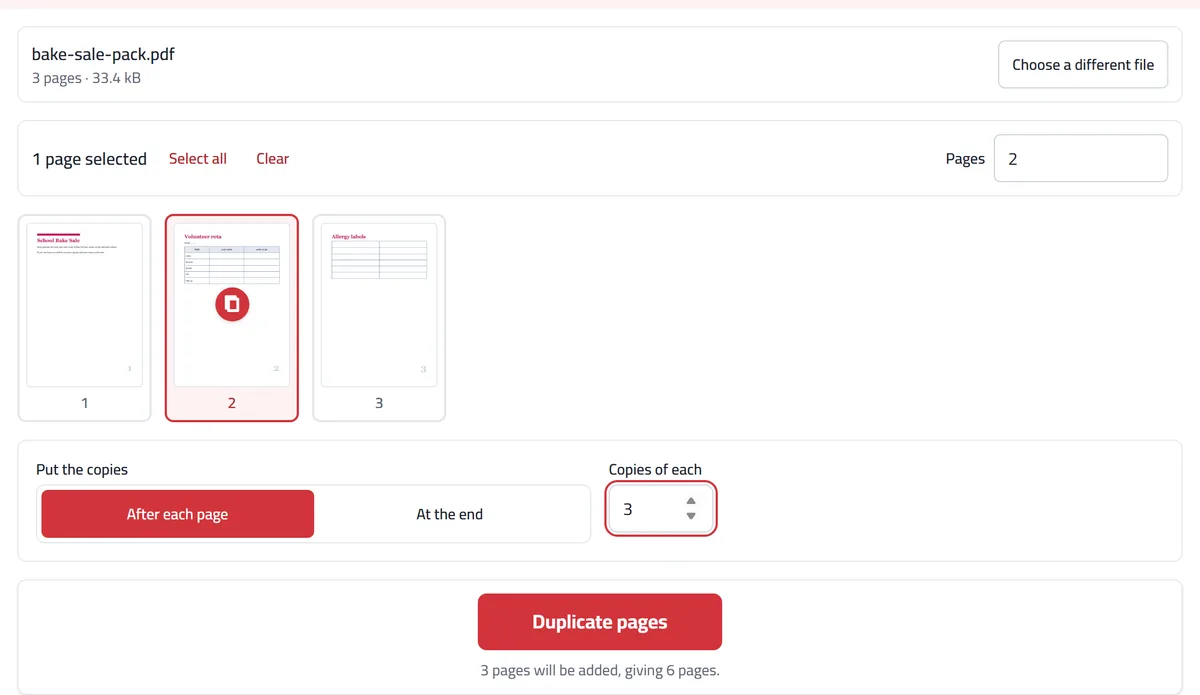
For this example we made a three-page pack for a made-up school bake sale: a letter to parents, a blank volunteer rota for one week, and a page of allergy labels. The sale runs for four weeks, so the organiser needs four rota pages.
Click page 2 only, choose “After each page” and set the copies to 3. The line above the button says 3 pages will be added, giving 6, and the four rotas come out one after another between the letter and the labels, so the whole pack prints from one file in the right order.
With “At the end” the three extra rotas would follow the allergy labels instead, which suits spare copies that are printed on their own. If all you need is more printed sheets of one page, your printer’s number of copies is quicker than changing the file.
When you would use it
Printing several copies of one form from a single file: a leave request, an attendance sheet, a receipt.
Repeating an instruction page at the start of each section of a booklet.
Having the same page twice so you can mark up one and keep the other as it was.
Preparing a print file where one page has to appear more than once, in a set order.
What to expect
Copies look exactly like the original, including answers and notes that were on the page when you copied it, but the form boxes on a copy can’t be filled in.
Each copy can sit next to the page it came from, or all the copies can go at the end.
Copying pages makes the file bigger, and a scanned page adds much more weight than a page of text.
If you only want more printed sheets, your printer’s "number of copies" setting is simpler than changing the file.
Frequently asked questions
Can I copy a page in a PDF for free?
Yes. No sign-up, no daily limit, and no watermark on your file.
Is my file uploaded?
No. The pages are shown and copied inside your browser, on your device. Your PDF is never sent to us or anyone else.
How do I duplicate pages in a PDF?
Choose the file, click the pages to copy (or type numbers such as 2, 4-6), choose where the copies go and how many you want of each, then press “Duplicate pages” and download. It is handy for a page that has to be printed several times with the rest of the file, such as a sign-up sheet or a blank rota.
Where do the copies go?
Wherever you choose. “After each page” puts every copy straight after the page it came from, which keeps related pages together. “At the end” adds them all after the last page, which suits extra copies of a form.
Do the copies look exactly like the original page?
Yes. A copy has the same size, direction and contents, including Arabic text and images, and it is a separate page from then on: a note you add to it later does not appear on the original. The one exception is form fields: the copy shows the answers, but its boxes can’t be filled in most readers.
How many copies can I make at once?
Up to 20 copies of each page you pick. Pick several pages and they are all copied in the same go.
Does the original file change?
No. Your file on disk is untouched; this tool hands you a new PDF with the copies added.
Can I duplicate a PDF page online free and fill in both copies?
Copying is free, but the copy’s form boxes can’t be filled in most readers, because they are copies of the boxes rather than new fields. For printing and filling in by hand that doesn’t matter. To fill both on screen, fill in the original, save it, and do the same again for the second one.
Why did my file get bigger?
Each copy carries its own copy of the page’s images and fonts. A page of text adds little; a scanned or picture-heavy page adds its full weight with every copy. If the result is too big to send, run it through Compress PDF afterwards.
Why can’t I open my password-protected PDF?
Protected files are encrypted, so their pages can’t be read or copied. Remove the password first, then open the file again.