Add Header and Footer to PDF
Add header and footer to PDF pages, free, in your browser.
Add header and footer to PDF pages: a title, a date, a note or page numbers at the top or the bottom. Choose where it sits, how big it is, and which pages get it.
- Free, no sign-up
- Files never leave your device
- Up to 100 MB per file
Drop a PDF file here
or
Up to 100 MB per file. Your files stay on your device.
Your file stays on your device. Nothing is uploaded.
What next
- Look at the first and last page: a line that suits the body pages may crowd a cover or a signature page.
- Read the header once more for typos. It now appears on every page, so a mistake shows everywhere.
How to add a header and footer to a PDF
- 1
Click “Choose a PDF file” or drag your PDF into the box.
- 2
Type your header, your footer, or both. Use {page} and {total} for page numbers.
- 3
Choose the position, the text size and which pages should get it.
- 4
Press “Add to the PDF”, then download your file.
What gets written on the page
One line for the header and one for the footer, up to 200 characters each, each with its own position: left, centre or right. Text sizes run from 8 to 18 points, in grey or black, and the line sits 30 points (about a centimetre) from the edge of the page as it is read, sideways pages included.
A line with any Arabic in it is written in Noto Naskh Arabic, which also draws Latin letters and digits; otherwise Noto Sans is used. Only the characters you typed are embedded: an eight-page sample grew from 105.4 to 107.4 KB. The pages aren’t copied into a new file, so bookmarks and links stay where they were.
Example: a meeting pack with a bare cover
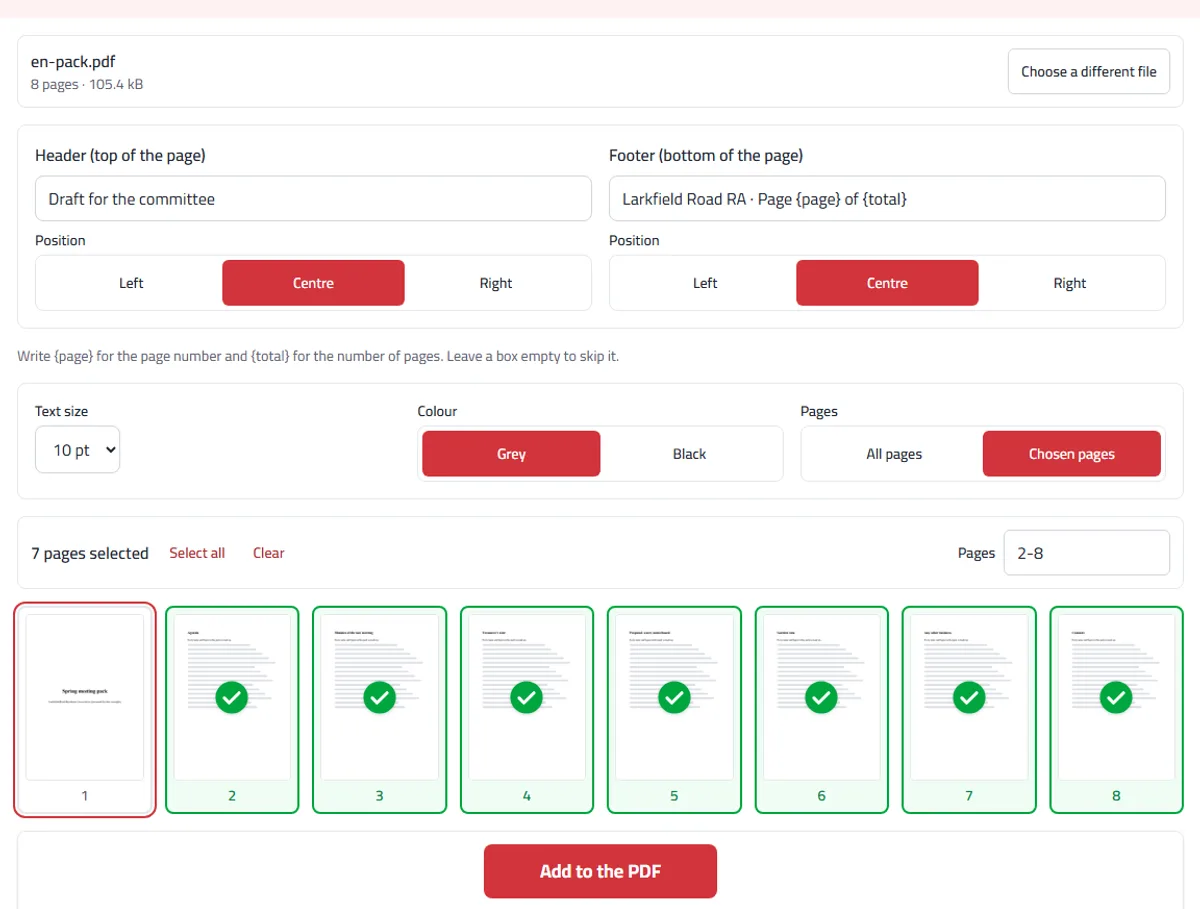
For this example we made an eight-page spring meeting pack for an invented residents’ association: a cover, then the agenda, the minutes, a treasurer’s note and the rest. Every page after the cover needed “Draft for the committee” at the top left and the association’s name with a page number at the foot.
We wrote the header, then “Larkfield Road RA · Page {page} of {total}” as the footer, chose “Chosen pages” and typed 2-8. The thumbnails show the seven pages ticked and the cover left out.
The first footer then reads “Page 2 of 8”: {page} counts from the first page of the file even when that page gets no line, and {total} counts every page. If the pack should read “Page 1 of 7”, number it with Add page numbers, leaving the first page bare, and keep the footer here without {page}.
When another tool fits better
The header here is text only. For a logo at the top of each page, place it with Add an image. For a note on one page rather than a line on every page, use Add text to PDF, and for a large diagonal “Draft” across the page, Add watermark.
Different headers on odd and even pages take two runs: choose the odd pages (1, 3, 5) with the line on the right, then open the result and choose the even pages with the line on the left, so it lands on the outside edge when printed double-sided.
When you would use it
Putting a company or department name on every page of a report before it is circulated.
Stamping a case, invoice or project reference on each page, so loose pages can be matched later.
Adding a short "internal use" line at the foot of a document.
Labelling a scanned bundle with its source and date before filing it.
What to expect
The line is fixed: the same words on every page you choose. It does not change with the content of the page.
{page} counts from the first page of the file and {total} is the file’s number of pages, so “Page {page} of {total}” works. To start from another number, or to leave the cover out of the count, use Add page numbers.
The text sits in the margin. On a page whose content runs to the edge, as many scans do, it can land on top of something. The tool doesn’t show the line before saving, so open the new file and look at its busiest page.
Arabic is written joined and from the right, and a line mixing Arabic with a Latin reference or a date keeps each part where you read it.
For a large diagonal mark across the page rather than a line in the margin, use Add watermark.
Frequently asked questions
Can I add a footer to PDF free, with no sign-up?
Yes. No sign-up, no daily limit, and no watermark on your file.
Is my file uploaded?
No. The text is written into your PDF inside your browser, on your device. Your file is never sent to us or anyone else.
How do I add page numbers?
Write {page} where the number should go. {total} becomes the number of pages, so “Page {page} of {total}” comes out as “Page 3 of 12”.
Does it work in Arabic?
Yes. Arabic is written with its letters joined, and a line that mixes Arabic with English words or numbers is put in the right order: the numbers stay the right way round, which is where most tools get it wrong.
Is the text real text?
Yes. It is written as text, not drawn as a picture, so it can be selected, searched and printed at full sharpness. Only the letters you actually used are added to the file, so it barely grows.
Will it cover something on my page?
It is placed in the margin, about a centimetre from the edge. If your pages are already full to the edge, make the text smaller or crop the page first.
Can I change the header afterwards?
Adding another one writes it on top of the first, so go back to your original file and add the new wording to that instead.
How do I add a header to a PDF?
Open the file, type your line into the Header box, pick left, centre or right, and choose all pages or only some. Then add it and download the new file. The footer box works the same way at the bottom of the page.
Why does my footer say Page 2 of 8 on the first page I chose?
{page} counts from the first page of the file, even when that page gets no line, and {total} counts every page. To leave a cover out of the count, use Add page numbers.
Can the header include a logo?
Not with this tool, which writes text. Place the logo with Add an image, then add the line of text here next to it or below it.
Can odd and even pages have different headers?
Yes, in two runs: the odd pages with the line on one side, then the even pages of the result with the line on the other.
Why can’t I open my password-protected PDF?
Protected files are encrypted, so nothing can be written into them. Remove the password first, then open the file again.