To change the author name in a PDF, you need a tool that edits the file’s document details, a small set of fields stored inside the PDF next to the pages: title, author, subject and keywords. Most viewers only show these fields. An editor changes them and saves a new copy, and the pages themselves stay exactly as they were.
In short: open the file in a details editor, type the new author and title (or clear them), save a copy, and check it before you send it.
What a PDF says about itself
Besides its pages, a PDF can carry:
- Title, which many viewers show in the window or tab instead of the file name;
- Author, usually filled in by the program that made the file;
- Subject and keywords;
- the program that made the file and the one that wrote the PDF;
- the date it was created and the date it was last changed.
Nobody typed most of this on purpose. The program that made the file usually copies the name it knows, such as the account name on the computer or the name set in the program itself. A title is often just the working name of the document, like “draft_v3” or “final FINAL”.
To see what a file carries on a Mac, open it in Preview and open the Inspector: Apple’s guide says it shows details such as the file size and the author’s name. (Apple: View information about PDFs and images in Preview) In many viewers on Windows, the same details are under Properties in the file menu. On a phone they’re usually not shown at all, which is why people send them without knowing.
Why it matters before you send a file
- The author name can be the wrong person. A file made from a colleague’s template, or on a shared or second-hand computer, can carry someone else’s name.
- It can be your private name. A CV or an application sent to many places may show the full name your laptop was set up with, not the name you use professionally.
- An old file keeps old details. A flyer or newsletter you saved as a PDF from an old Publisher file still carries the author and title it was given years ago. To turn your old .pub files into PDFs, see how to open a .pub file without Publisher.
- The title can give away what you meant to keep to yourself. “Offer letter DRAFT v3” or a client’s name in the title appears in the reader’s window as soon as they open the file.
- Search results and file lists show it. When a PDF is put online, search engines and document lists often display its title, not its file name.
None of these details is visible on the page, so checking the pages alone doesn’t catch them.
Change the author and title in your browser
Edit PDF metadata shows every one of these fields, lets you change or clear them, and saves a new copy. It works in any browser, on a computer or a phone, and the file stays on your device.
- Open Edit PDF metadata and press Choose a PDF file.
- The current Title, Author, Subject and Keywords fill the boxes. Below them, Also in this file lists what you can’t type over: the program the file was Made with, the one it was Written by, and when it was Created and Changed.
- Type the new author and title. Leave a box empty to clear that field.
- To wipe everything at once, tick Remove everything instead. It clears the title, author, subject and keywords, and the names of the programs that made the file.
- Press Save details. When Your PDF is ready appears, press Download PDF.
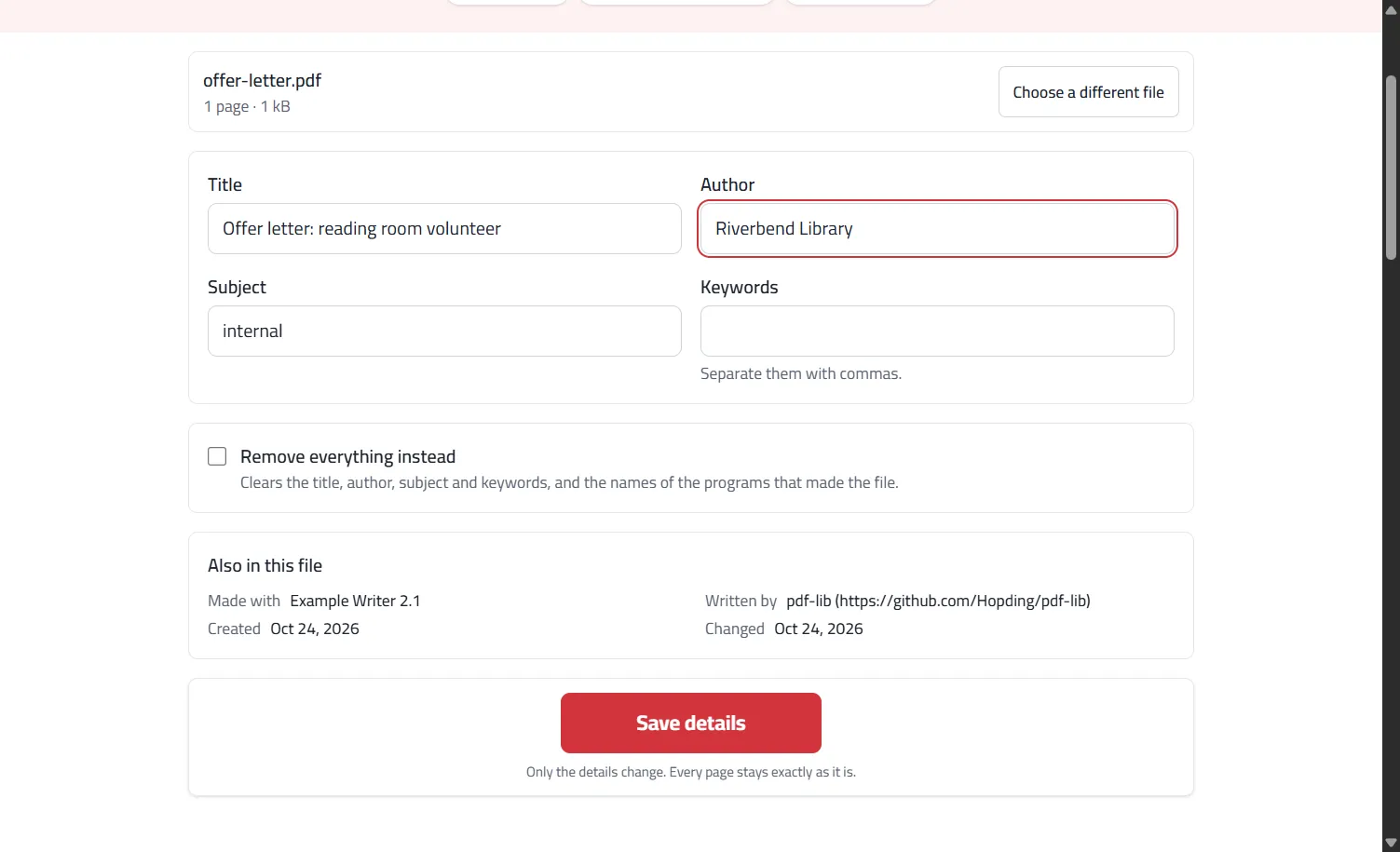
Only the details change; every page stays exactly as it is. Some files keep a second, hidden copy of these details, and the tool removes it, so every program shows what you typed. Arabic titles and names are kept exactly as typed.
Other ways, and where they fall short
Fix it at the source. The neatest way to get a clean author name is to set your name correctly in the program you write in, then save the PDF again. Every future file then starts right. It doesn’t help with a PDF you received or no longer have the original of.
Paid PDF editors have a document properties window where these fields can be typed over. If you already own one, it does the same job; free readers usually only show the fields.
Printing to PDF makes a new file whose details come from the printing step, not from the original. It can drop the old author, but it can also turn text into something less clean, lose links, and enlarge the file. It’s a workaround, not a fix.
What changing the details doesn’t do
- It doesn’t change anything on the pages. A name in the letterhead, a signature or a footer is part of the page. To remove that, use Redact PDF, which removes text under black boxes for good.
- It isn’t a full clean-up. Comments, form answers, attachments and earlier versions of the text can also be in a file. Changing the details doesn’t touch them.
- It doesn’t prove who wrote the file. These fields can be typed by anyone, so they are a label, not evidence. A digital signature is the way to show who signed a document.
- Password-protected files can’t be changed until the password is removed.
- Keep the original. The new copy is a separate file; check it in your usual viewer before you send it.
Frequently asked questions
Why does my PDF show someone else’s name as the author? The program that made it copied the name it was set up with: often the owner of the computer, the template, or the account the program was installed under. Change it before you send the file.
Will changing the title rename the file? No. The file name and the title are separate. The title is what many viewers show in the window or tab; the file name is what you see in a folder.
Can I remove the author completely? Yes. Leave the Author box empty, or tick Remove everything instead to clear all the fields at once.
Does the reader see these details? Only if they look: in Preview’s Inspector, in a Properties window, or in a viewer that shows the title in its tab. The point is not to leave there anything you wouldn’t put on the page.
Is it safe to send a bank or ID document after changing the details? Changing the details only covers the details. For sensitive documents, also remove what is on the pages that the reader doesn’t need, as our guide to bank statement PDFs explains.