To compare two versions of a PDF, open both in a comparison tool that lines up their text and marks what was added and removed. You can do it for free in your browser: put the old version on one side, the new one on the other, and read only the highlighted words. Below are the steps, and a few things a comparison won’t tell you.
This comes up most when someone sends you a “slightly updated” contract to sign, or when you’ve kept several versions of your CV and can’t remember which one says what. You can read the two files side by side, of course, but it’s slow, and a changed number in the middle of a paragraph is very easy to miss.
When comparing versions is worth the time
The usual reasons look something like this:
- A revised contract or agreement. A landlord, employer or client sends “the final version” after a discussion. You agreed on two changes; you want to be sure there are only two.
- Your own CV. You tailor it for each application and end up with “CV-final”, “CV-final-2” and “CV-June”. Comparing tells you exactly what differs before you send one.
- A report or a policy that went round for comments. You want to see what the last person changed before you approve it.
- Terms and conditions or a price list that a company has updated, when the old copy is saved on your computer.
Each time, you want to know what is different in the new file, word for word.
Compare the two versions in your browser
Compare two PDFs reads the writing on each page of both files and shows the differences side by side. Both files stay on your device and neither is uploaded, which is worth knowing when the documents are contracts or personal papers.
- Open Compare two PDFs.
- Under The older file, choose the version you had before.
- Under The newer file, choose the version you received.
- Press Compare them.
- Read the summary at the top, for example “1 page changed: 12 words added, 13 words taken out”. Words that are new appear in green; words that were removed appear in red with a line through them.
- Leave Only changed pages ticked to skip the pages that are the same, or untick it to see everything.
- Press Save the differences if you want a plain text list of every change to keep with the two files.
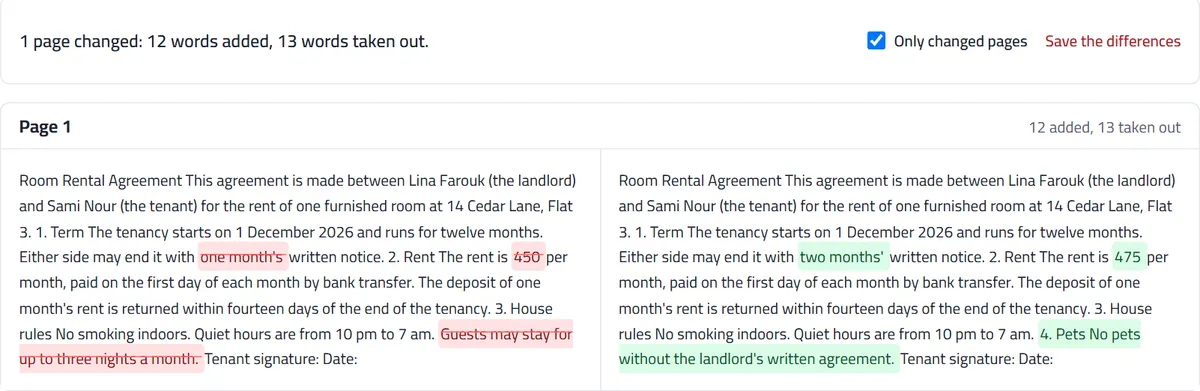
In the example above, an invented rental agreement, four changes stand out at once: a longer notice period, a higher rent, a rule taken out and a new clause. You see each one as a highlighted phrase, so you don’t have to reread the page to find it.
How to read the result
The comparison lines the pages up in order: page 1 of the old file against page 1 of the new one, and so on. That works well for two versions of the same document, with one side effect. If a whole paragraph was added near the start, the text after it moves down, and the following pages can look changed even when their words are the same. When you see that, look at the first changed page closely: that is where the real change is.
When you check a result, look at these first:
- Check numbers and names first. Amounts, dates, notice periods, percentages and the names of the parties are the details that matter most and are easiest to miss.
- Read a removed sentence twice. A missing condition, such as a rule about deposits or a limit on liability, is often more important than anything added.
- Note small words. “May” becoming “must”, or “within 14 days” becoming “within 30 days”, changes the meaning of a clause with one or two words.
What a text comparison can’t see
A comparison of the writing is fast and precise, but it only looks at the words. It won’t tell you about:
- Layout, fonts and pictures. A logo, a stamp, a signature image or a changed table border is not compared. Two pages with the same words in a different font count as the same.
- Scanned pages. A scan is a picture of a page with no text inside it, so there is nothing to compare. If both files are scans, the tool says so. Our guide to why you can’t select the text in a scanned PDF explains the difference.
- Password-protected files. The text inside is encrypted until the password is removed.
- What the change means. A tool can show you that a clause is different; only you, or someone qualified to advise you, can judge whether the new wording is acceptable.
Other ways to compare, and their limits
You may already have a program that compares documents. They all work, but each has its catch:
- Microsoft Word. On the Review tab, Compare then Compare Documents marks the differences between two Word files as revision marks in a new copy, without changing the original (Microsoft: Compare and merge two versions of a document). To use it on PDFs, Word must first convert each PDF into a document, and Microsoft notes that the converted layout often doesn’t match the original page for page (Microsoft: Opening PDFs in Word). Line breaks that move can show up as changes that aren’t really there.
- Adobe Acrobat. Acrobat has a Compare Files tool that also looks at images and formatting, but Adobe lists it as available only in Acrobat Pro, Premium and Studio, not in the free Reader (Adobe: Compare files).
- Online comparison websites. Many upload both files to their servers to do the work. Before you use one for a contract, a CV or anything with personal details, read what its privacy policy says about how long files are kept.
- Reading by eye. Free and always available, but slow, and the easiest way to miss a changed digit.
If the new version is a Word file and you have Word, I’d use its comparison. For two PDFs, comparing the text directly saves you the conversion step.
Before you sign the new version
Once you know what changed, go through the changes one by one:
- List the changes you didn’t agree to. Note the page, copy the changed wording, or attach the saved list of differences.
- Ask the sender about them before signing. A polite question such as “I noticed clause 3 no longer mentions guests; was that intended?” settles most of it. If something needs correcting, request a corrected version from the sender rather than editing their document yourself.
- Mark up the new file if it helps. Annotate PDF adds highlights and notes, so you can send back the file with the questions pointed out.
- Compare again when the corrected version arrives. It takes a minute and confirms that only the agreed changes were made.
- Sign the version you checked. Sign PDF places your signature on the page, and the guide to visual and digital signatures explains what kind of signature the other side may need.
Keep both versions and the list of differences together. If anyone later asks what was agreed, you’ll have a clear record of what changed and when you noticed it.
Frequently asked questions
Can I compare a PDF with a Word file?
Not directly. Save the Word file as a PDF first, then compare the two PDFs. Saving as PDF keeps the text, so the comparison still works word by word.
Does it work if one version is a scan?
Only the version with real text can be read. A scanned page is a picture, so the comparison would show it as having no writing. Ask the sender for the original digital file, which is usually easy for them to provide.
Can I copy the changed text into an email?
Yes. Use Save the differences for a plain list, or Copy text from PDF to copy a whole page of the new version and quote the exact sentence you are asking about.
Will the other person see that I compared the files?
No. Nothing is added to either file, and nothing is sent anywhere. The comparison happens in your browser and disappears when you close the page, unless you save the list of differences yourself.