To scan a document to PDF on an iPhone, you don’t need to install anything: the Files and Notes apps both have a document scanner built in. Point the camera at the page, let it capture, adjust the corners, and save. The scanning part is usually quick. What takes longer is what comes after, when you find that the second page is a separate file, or that the PDF is too big for the form you’re filling in. Both apps are below, and so are the fixes.
Scan with the Files app
If you want a file you can attach to an email or upload to a website, I’d use the Files app. The scan goes straight into a folder, so there’s nothing to export afterwards. Apple describes these steps (Apple: How to scan documents on your iPhone or iPad):
- Open Files and tap the More button (the circle with three dots).
- Tap Scan Documents.
- Hold the iPhone over the page. In Auto mode it captures by itself; to capture yourself, tap the shutter button or press a volume button.
- Drag the corners so the frame matches the edges of the paper, then tap Keep Scan.
- Scan the next page the same way, or tap Done when you have them all.
- Choose a folder, then tap Save.
Rename the file straight away, to something like Surname-application-form.pdf. Every scan starts out as “Scanned Document”, and after the third one you won’t know which is which.
Scan with the Notes app
Notes makes more sense when you want the scan kept with your other notes, or when you’re going to sign it on the phone. Apple’s steps (Apple: How to scan documents on your iPhone or iPad):
- Open Notes and open a note, or create a new one.
- Tap the Attachment button (the paper clip), then tap Scan Documents.
- Capture each page as in the Files app, adjust the corners, and tap Keep Scan.
- Tap Done.
The scan sits inside the note as a PDF (Apple: Scan text and documents in Notes). Notes also lets you add a signature to the scan: Apple’s scanning guide explains how, by tapping the scan, then Markup, then the Add button and Signature. When you need the file elsewhere, share it from the note to the app or person you are sending it to.
Recent versions of iOS also put options such as the flash and image filters on the scanning screen. Older versions may label things a little differently, so if a step above doesn’t match your phone, look for the same words in a nearby menu.
Tips for a clean scan
The scanner does most of the work, but a few small habits make a real difference:
- Use a dark, plain surface. A white page on a dark table gives the scanner clear edges to find.
- Light from above, not from behind you. Your own shadow across the page is the most common reason a scan looks grey on one side.
- Hold the phone flat over the page, not at an angle. The scanner straightens the page, but a steep angle stretches the text.
- Flatten folded paper under a book for a minute first. A crease can come out as a dark line.
- Check each page before you tap Keep Scan. Retaking one page now is faster than fixing the file later.
When the scan needs fixing
Scans made in a hurry tend to go wrong in the same few ways. You can fix each of them in your browser, and the file stays on your phone the whole time.
Two scans that should be one file
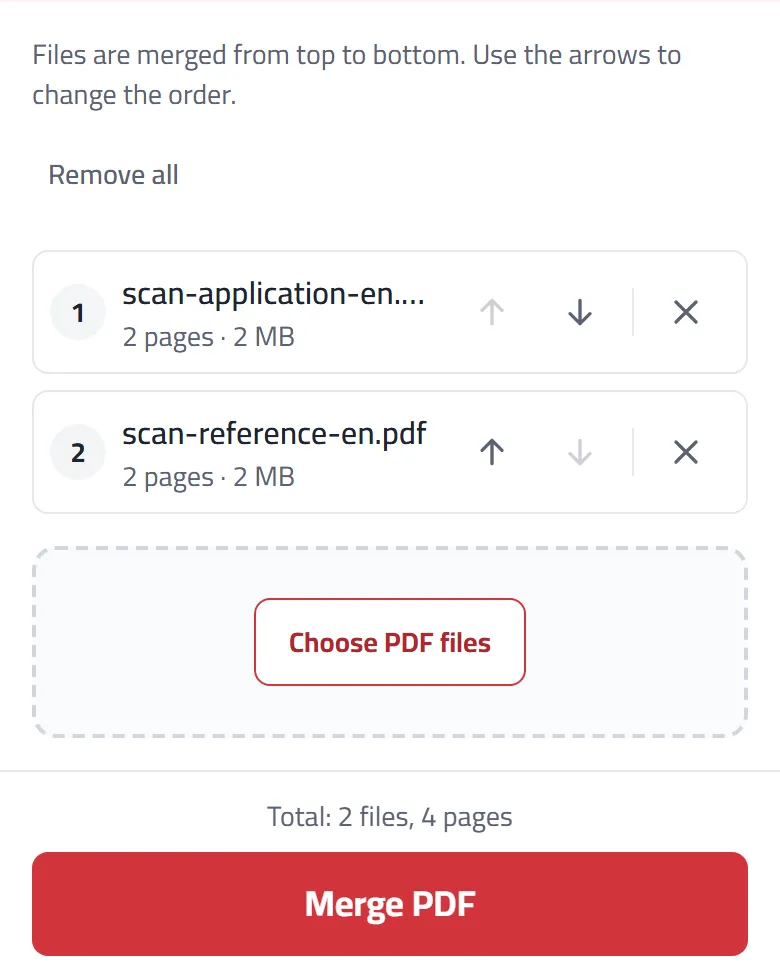
You scanned the form, then found the second page in another pile, and now there are two PDFs. Open Merge PDF, tap Choose PDF files and pick both. They are joined from top to bottom; use the arrows to swap their order, then tap Merge PDF and download the single file.
Pages in the wrong order
If you scanned pages 3 and 2 the wrong way round, open Rearrange pages and drag them into place. Our guide to fixing a messy scanned PDF covers shuffled, sideways and blank pages together.
A page that came out sideways or upside down
Open Rotate PDF, turn only the page that is wrong, and save. Rotating there changes the file itself, so the page stays the right way up wherever it is opened, not only on your phone.
A blank page you scanned by mistake
It’s easy to scan the back of a single-sided page without noticing. Remove blank pages finds pages with nothing on them and shows you which it picked before anything is removed.
A file too big to upload or email
Phone scans are photos of paper, and photos are large, so a few pages can easily go over the limit of an application form or an email attachment. Compress PDF makes the pictures inside smaller while keeping text readable. Choose a level, or choose Fit under a size and pick the limit the website gives you, then tap Compress PDF.
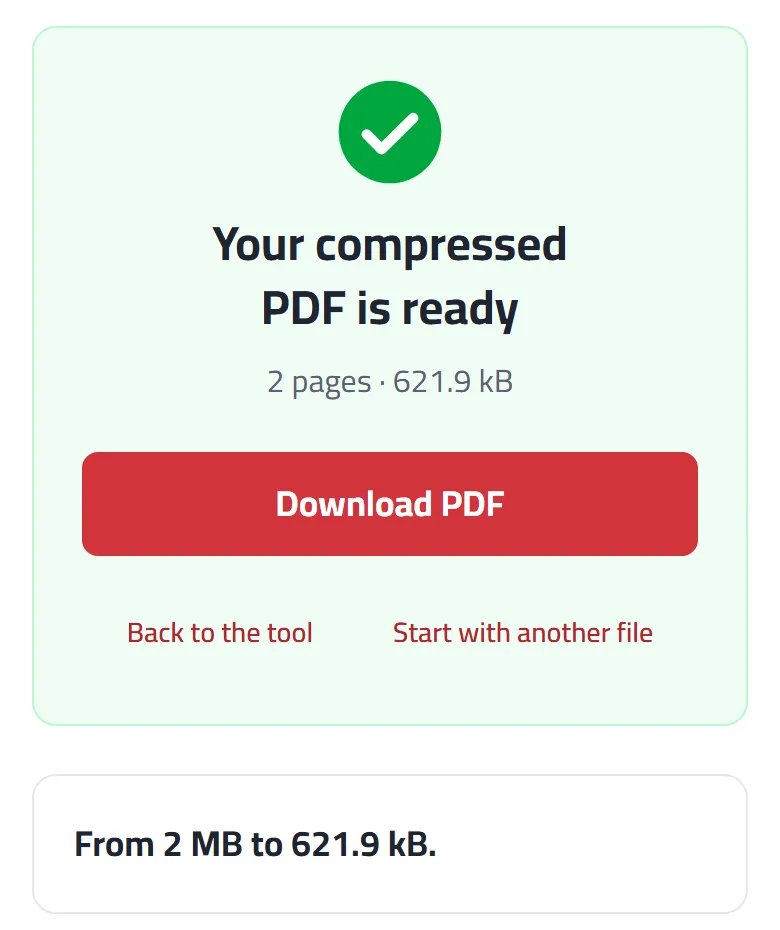
In the example above, an invented two-page scan went from 2 MB to about 620 kB. Before you send it, zoom in on the smallest print. If you can read it, so can the person receiving it.
What a phone scan can and can’t do
A phone scan is a picture of each page saved inside a PDF. For most applications and offices that’s exactly what they want, but there are a few things it can’t do:
- The text usually can’t be edited. The words are part of the picture. Our guide on why you can’t select the text in a scanned PDF explains why, and what your options are.
- It shows what the paper shows. A scan is a copy, not a certified one. If an office needs a certified copy or the original document, a phone scan will not replace it.
- Quality depends on the light. No app can recover writing lost in a dark shadow. Retake the page instead.
- Scan only what you are entitled to share. Your own documents, or papers you have been asked to send; leave out pages with other people’s details if the recipient doesn’t need them.
Other options
- A flatbed scanner or a printer with a scan button gives the sharpest, flattest result, and is worth using for something important such as a contract you will keep for years.
- Third-party scanning apps add features such as automatic naming or cloud folders. Many need an account or a monthly plan, and some upload your scans to their servers, so read what they do with your files before using one for personal documents.
- Photos instead of a scan. If you already took ordinary photos of the pages, JPG to PDF turns them into one PDF in the order you choose.
Frequently asked questions
Is a scan from the Files app a PDF?
Yes. The scanner saves a PDF that you can attach to an email, upload to a website or open on a computer.
Can I scan several pages into one PDF?
Yes. Keep scanning before you tap Done, and every page goes into the same file. If you already have separate files, join them with Merge PDF as shown above.
Why is my scanned PDF so large?
Each page is a high-resolution photo. Compressing it usually makes it several times smaller, and when you’re reading it you probably won’t notice any difference.
Can I do the same on Android?
Android phones have their own scanners, for example in the Google Drive app, which can save the scan as a PDF (Google: Scan documents with Google Drive). The fixes in this guide work the same way in any phone browser.