You turned a sideways page, it looked right, you saved, and the next time you opened the file it was sideways again. That happens because most PDF viewers only turn your view of the page, not the page stored in the file. To keep the new direction, you need a tool that changes the page itself and then saves a new copy of the PDF.
In short: use a viewer’s rotate button to read a page, and an editor (or a rotate tool) to fix it for good. Then open the saved copy again to check it stayed.
This guide explains the difference, then shows the methods that do change the file on a computer and on a phone, and where each one falls short.
Why the page flips back
A PDF page has a setting that says which way up it should be shown. A tool that rotates the page for good changes that setting and writes it into the file. A viewer that only rotates the view keeps the setting as it was and turns the picture on your screen, so nothing reaches the file.
Adobe states this plainly in its help page for Acrobat: View > Rotate view changes how you see the page, and the original orientation comes back the next time you open the PDF. Rotating with the Organize pages tool and then saving is what changes the file. (Adobe: Rotate pages in PDFs)
Browsers work the same way. Microsoft’s documentation for the PDF reader built into Edge lists Rotate among its reading tools, next to zoom and fit to page. (Microsoft Learn: PDF reader in Microsoft Edge) Microsoft doesn’t say that the turn is stored in the file, so treat it as a reading aid and check before you rely on it.
The quick test for any app: rotate, save, close the file, and open it again. If the page is sideways again, the app only turned your view.
On any device: a rotate tool in the browser
Rotate PDF changes the direction stored in each page and gives you a new file. It runs in your browser, so the same steps work on Windows, a Mac, an iPhone or an Android phone, and the file stays on your device.
- Open Rotate PDF and press Choose a PDF file.
- Each page appears as a small picture with two arrows under it. Press the arrow on the right of a page to turn it to the right, or the one on the left to turn it to the left. Keep pressing until the page is the right way up.
- To turn the whole file, use Turn all left or Turn all right at the top. Undo all turns puts every page back as it was.
- Press Rotate pages. When you see Your PDF is ready, press Download PDF.
- Open the downloaded copy in your usual viewer and check the pages. The new direction is part of the file now, so every viewer shows it.
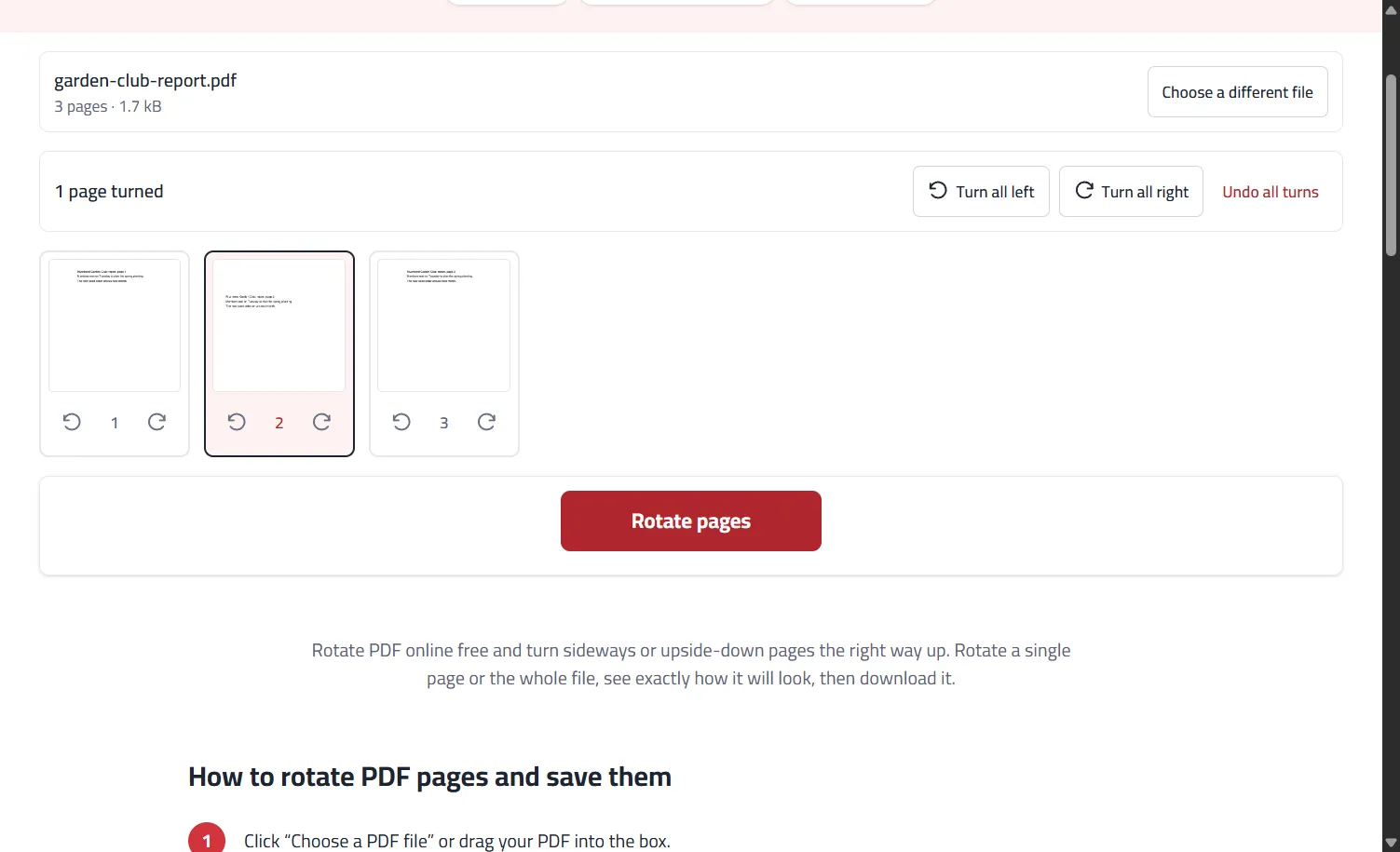
Only the direction changes. The text stays text, links keep working and nothing is redrawn, so the quality is exactly as before.
When the pages are also in the wrong order
Scans often come out sideways and shuffled at the same time. Turn the pages first, download, then open the new file in Rearrange pages to drag them into order. Our guide to fixing a messy scanned PDF walks through sideways, shuffled and blank pages together.
On a Mac: Preview
Preview, which comes with every Mac, can turn pages in a PDF. Apple’s guide describes it like this (Apple: Crop or rotate a PDF in Preview):
- Open the PDF in Preview.
- To turn one page, click the rotate button in the toolbar, which turns it to the left. Hold the Option key while you click to turn it to the right.
- To turn several pages, choose View > Thumbnails, select the pages in the sidebar, then click the rotate button.
Then save the file and run the quick test above: close it, open it again and check the pages. If you want to keep the original as it was, save a copy under a new name first.
In Adobe Acrobat
If you already use Acrobat with the Organize pages tool, rotating there and saving changes the file, as Adobe’s help page describes. Rotate view in the View menu doesn’t, which is the usual cause of “it flipped back”. If your copy of Acrobat doesn’t offer Organize pages, the view is all it can turn, and a separate rotate tool is the way to keep the change.
On a phone
Phone PDF viewers are built for reading, and the ones that come with a phone rarely have a rotate option that saves into the file. Turning the phone sideways only changes the screen, not the PDF. The browser tool above runs on iPhone and Android alike:
- Open Rotate PDF in Safari or Chrome.
- Press Choose a PDF file and pick the PDF from Files, Downloads or the place your email app saved it.
- Turn the pages, press Rotate pages, then Download PDF.
- The new copy is saved where your browser keeps downloads, usually a Downloads folder (on an iPhone, in the Files app). Send that new copy, not the original.
Honest limits
- A page with a crooked scan stays crooked. Rotating turns a page by a quarter turn at a time. A page scanned at a slight angle needs to be scanned again, or straightened in a scanning app first.
- Password-protected files can’t be changed until the password is removed. If you have the password, remove it first, then rotate the copy.
- A page that is sideways inside the page is different. If someone pasted a sideways picture onto an upright page, turning the page turns the picture with it, so the page itself ends up sideways. Turn it back and fix the picture in the program that made the file.
- The original file is never changed. Every method that works writes a new copy or saves over the file you opened, so keep the original until you have checked the new one.
Frequently asked questions
Why does my PDF go back to the old direction after I save it? The app you used only turned your view of the page, so nothing was written into the file. Use a tool that rotates the pages themselves, then open the saved copy to check.
Can I turn just one page and leave the rest? Yes. In Rotate PDF, use the arrows under that page only. The counter at the top shows how many pages you have turned.
Does rotating lower the quality? No. Only the page’s direction setting changes. Text, pictures and links stay exactly as they were.
I received the PDF by email. Will the sender see my change? Only if you send them the new copy. Rotating never changes the file in their inbox.
Can I rotate a PDF that I scanned with my phone? Yes, if it’s a normal PDF. Phone scans are among the most common sideways files, and our guide to combining phone photos into one PDF shows how to keep them upright from the start.